
Blackboard Basics

What is Blackboard?

[dt_fancy_separator separator_style=”double” line_thickness=”2″ el_width=”40%”]

Blackboard is a popular learning management system (LMS) used in colleges and universities across the globe. It provides the core development, hosting, and delivery functions of all BeADisciple.com courses and is the main software used by BeADisciple learners to engage their courses, instructors and peers.

Blackboard is generally easy to navigate when the basics are understood. If you’re new to BeADisciple, this is a great place to start. “Blackboard Basics” will explain some of those skills, and if you’re needing further help our Blackboard help tool should get you back on track.


Supported browsers

[dt_fancy_separator separator_style=”double” line_thickness=”2″ el_width=”40%”]

As an online learning suite, you will need a good internet browser to access Blackboard unless you are using the Blackboard mobile app (see below). We have found the best performance with Google Chrome, Firefox and Safari. Which browser to use is mostly a matter of preference, style, and security and any of these listed below should have little problem running Blackboard, with some exception to Edge. Do note, some high-security browsers (like Brave) have been known to run into resource problems with Blackboard, breaking the user experience.

System requirements

[dt_fancy_separator separator_style=”double” line_thickness=”2″ el_width=”40%”]

Blackboard is a web-based software and does not require any extra programs, devices, or apps to work.

Simply a good browser and a working computer.

So if you are currently using one of the browsers above without problem you will very likely not need to consider any further requirements. In any case, we suggest these system requirements as a minimum for a good BeADisciple experience.

[dt_vc_list bullet_position=”middle” dividers=”false”]

  • Windows 10 or newer or Mac OS 10.14 Mojave or newer
  • Processor: 1 GHz or faster
  • RAM: 4 GB or higher
  • 20 GB of available hard-drive space
  • Screen resolution: 1280×1024 or higher
  • Stable Internet: At least 1.5 Mbps download speed
  • Working speakers plus webcam/microphone for courses featuring Zoom

[/dt_vc_list]

Mobile devices

[dt_fancy_separator separator_style=”double” line_thickness=”2″ el_width=”40%”]

You can access Blackboard on mobile through your device’s browser or the Blackboard Learn mobile app by Anthology (available at Google Play or the Apple store). This option is not recommended however, as some features are unavailable in the app making it likely that some part of your course will not work properly. Thereby, this app is unsupported by BeADisciple staff.

The Blackboard mobile app should not be confused with the BeADisciple Study App, which does not host courses listed at BeADisciple.com.

Blackboard Login Page

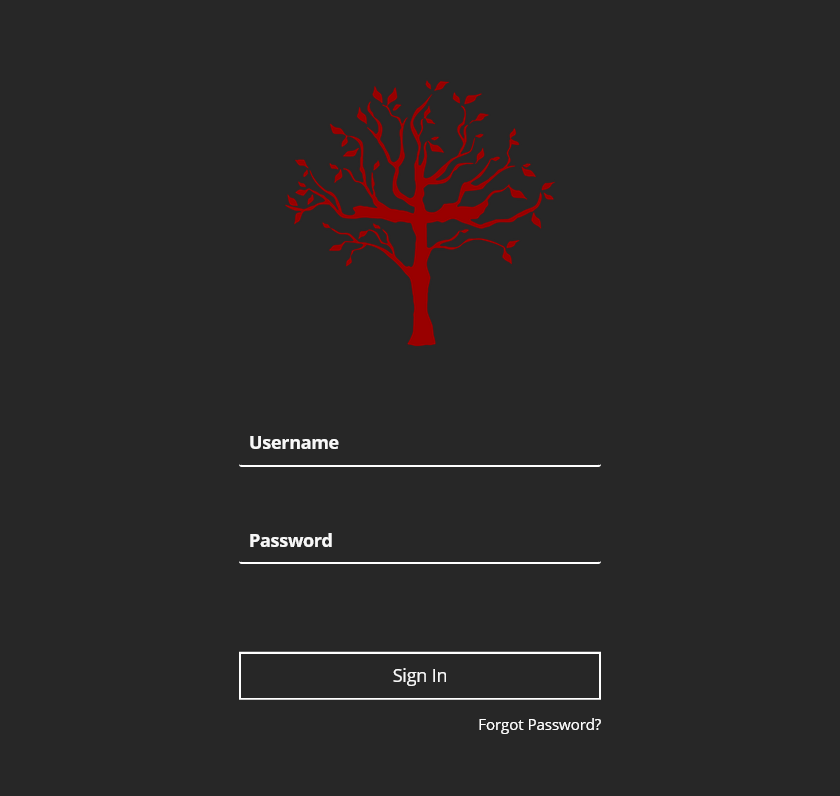
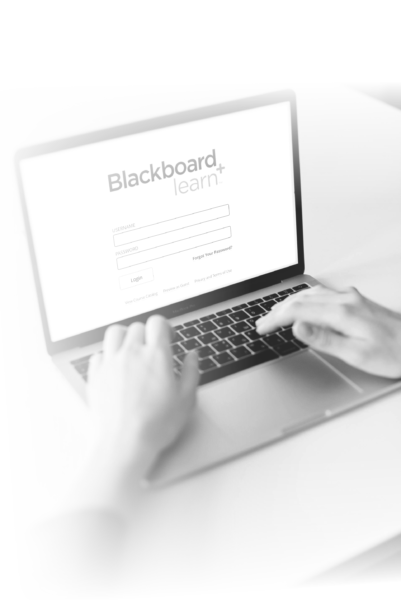
The image to the left shows the login screen, which you will find by clicking on “Go To Blackboard” at the top right of the page, or by clicking this link. We recommend bookmarking this login page in your browser for faster access.

Username

Your Blackboard username will be the email address used in your course enrollment form. Be sure to use the full email address, with accurate capitalization, etc. or else Blackboard will not recognize your username.

Password

If you are a new learner, or simply haven’t changed your password, your password will be the default password provided in your course launch email. Otherwise, it will be whatever you have chosen as your new password. Problems with passwords are addressed in the help section of this page.

Login Problems

If you are having trouble with logging in, please look at the help tool immediately below. If you do not find your answer there, you can contact us through the contact form in our FAQ page.

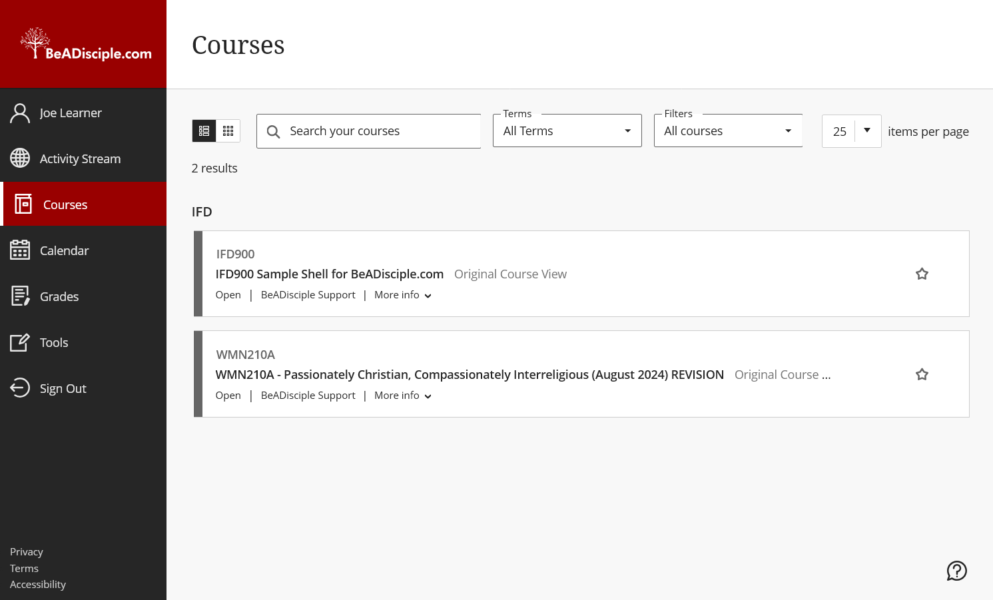
On a successful login, you will see this screen – your Blackboard home screen. This page provides helpful tools and sub-pages, including a user page and a calendar. Your courses will be the default page, which means that when you log in you will see your active enrolled courses first. It’s important to not confuse your home screen with your course (see the next tab).

A primer on Blackboard navigation can be found here.

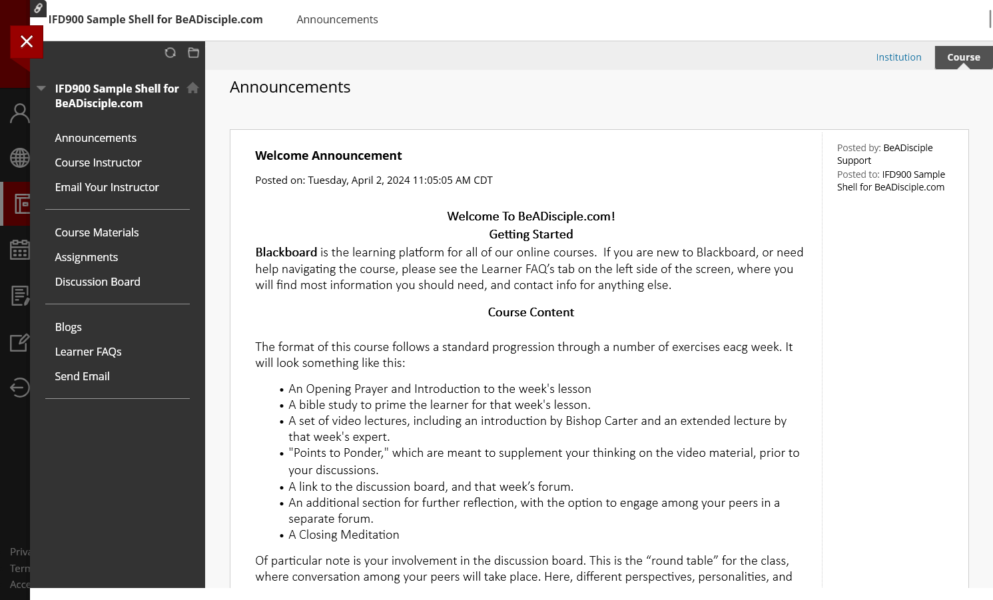
Clicking on your course title will take you to your course screen. Welcome!

On the left is a grey menu – the Navigation Panel – which is one of the most important parts of Blackboard for the BeADisciple learner. A few of the important links here include:

  • Announcements: Where your instructor will provide crucial information about the class.
  • Instructor Info
  • Email options: Including the option to email your instructor directly.
  • Assignments: Where daily or weekly content is posted.
  • Discussion Board: Where you will engage your peers in an online forum.
  • Learner FAQs: Click here if you’re needing some direction in your class.

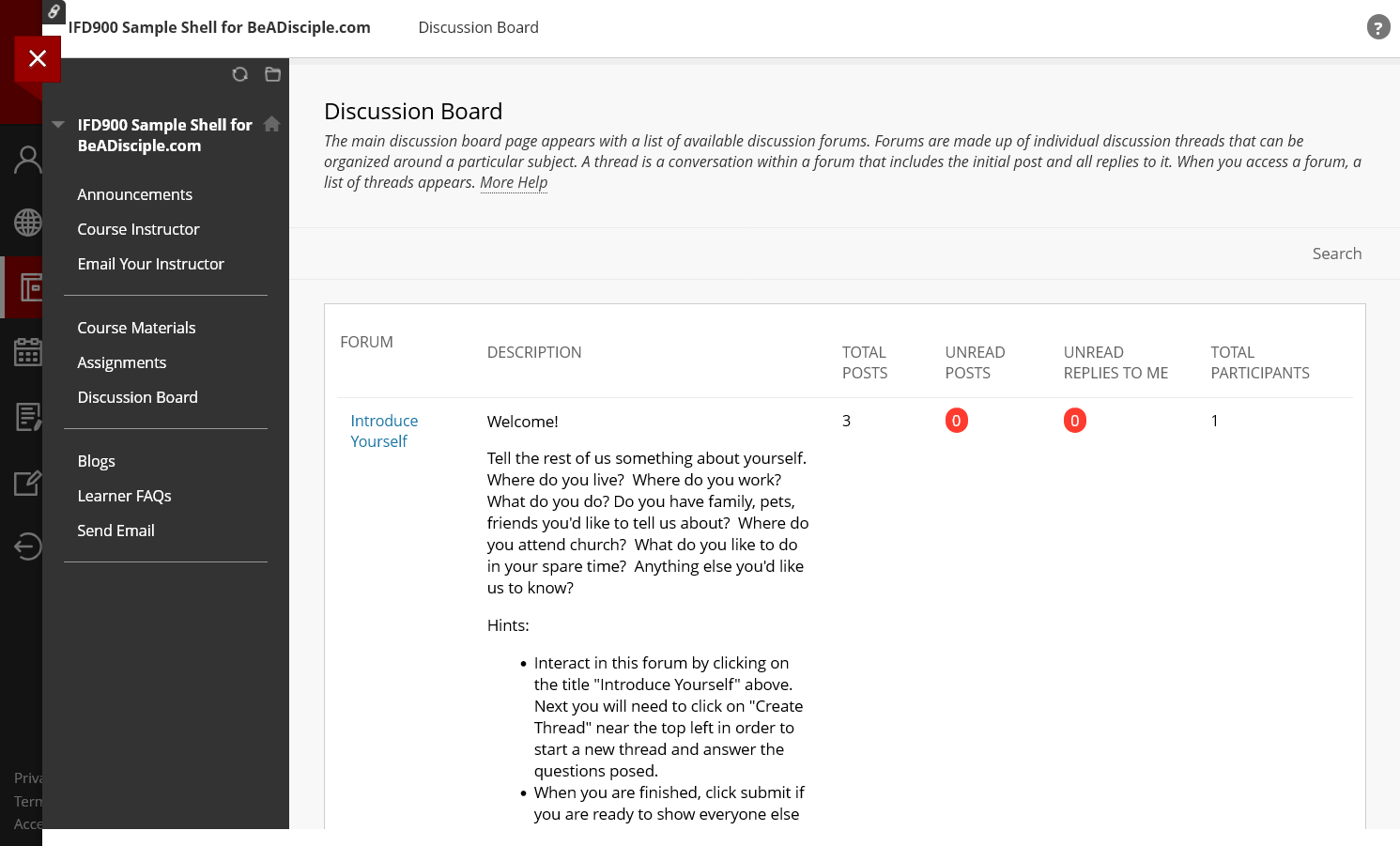
The Discussion Board is the heart of many BeADisciple courses, where you will answer questions, debate issues, connect with others and begin building your own BeADisciple community.

Clicking a discussion’s title will bring you into the forum, which will allow you to post your own threads, read other’s posts, and respond.

If you need more help with the discussion board, look at “Confused about the Discussion Board” in the Help section below, or in the Learner FAQs section of your course.

Blackboard is a popular learning management system (LMS) used in colleges and universities across the globe. It provides the core development, hosting, and delivery functions of all BeADisciple.com courses and is the main software used by BeADisciple learners to engage their courses and peers.

Blackboard is generally easy to navigate when the basics are understood. That is where this page comes in. If you’re new to BeADisciple, give this section a look. “Using Blackboard” will explain some of those basic skills, and if you’re needing further help our Blackboard help tool should get you back on track.

As an online learning suite, you will need a good internet browser to access Blackboard unless you are using the Blackboard mobile app (see below). We have found the best performance with Google Chrome, Firefox and Safari. Which browser to use is mostly a matter of preference, style, and security and any of these listed below should have little problem running Blackboard, with some exception to Edge. Do note, some high-security browsers (like Brave) have been known to run into resource problems with Blackboard, breaking the user experience.

Blackboard is a web-based software and does not require any extra programs, devices, or apps to work.

Simply a good browser and a working computer.

So if you are currently using one of the browsers above without problem you will very likely not need to consider any further requirements. In any case, we suggest these system requirements as a minimum for a good BeADisciple experience.

[dt_vc_list bullet_position=”middle” dividers=”false”]

  • Windows 10 or newer or Mac OS 10.14 Mojave or newer
  • Processor: 1 GHz or faster
  • RAM: 4 GB or higher
  • 20 GB of available hard-drive space
  • Screen resolution: 1280×1024 or higher
  • Stable Internet: At least 1.5 Mbps download speed
  • Working speakers plus webcam/microphone for courses featuring Zoom

[/dt_vc_list]

You can access Blackboard on mobile through your device’s browser or the Blackboard Learn mobile app by Anthology (available at Google Play or the Apple store). This option is not recommended however, as some features are unavailable in the app making it likely that some part of your course will not work properly. Thereby, this app is unsupported by BeADisciple staff.

The Blackboard mobile app should not be confused with the BeADisciple Study App, which does not host courses listed at BeADisciple.com.

Blackboard Login Page

This image shows the login screen, found by clicking on “Go To Blackboard” at the top right of the BeADisciple home page, or by clicking this link. We recommend bookmarking this login page in your browser for faster access.

Username

Your Blackboard username will be the email address used in your course enrollment form. Be sure to use the full email address, with accurate capitalization, etc. or else Blackboard will not recognize your username.

Password

If you are a new learner, or simply haven’t changed your password, your password will be the default password provided in your course launch email. Otherwise, it will be whatever you have chosen as your new password. Problems with passwords are addressed in the help section of this page.

Login Problems

If you are having trouble with logging in, please look at the help tool immediately below. If you do not find your answer there, you can contact us through the contact form in our FAQ page.

On a successful login, you will see this screen – your Blackboard home screen. This page provides helpful tools and sub-pages, including a user page and a calendar. Your courses will be the default page, which means that when you log in you will see your active enrolled courses first. It’s important to not confuse your home screen with your course (see the next tab).

A primer on Blackboard navigation can be found here.

Clicking on your course title will take you to your course screen. Welcome!

On the left is a grey menu – the Navigation Panel – which is one of the most important parts of Blackboard for the BeADisciple learner. A few of the important links here include:

  • Announcements: Where your instructor will provide crucial information about the class.
  • Instructor Info
  • Email options: Including the option to email your instructor directly.
  • Assignments: Where daily or weekly content is posted.
  • Discussion Board: Where you will engage your peers in an online forum.
  • Learner FAQs: Click here if you’re needing some direction in your class.

The Discussion Board is the heart of many BeADisciple courses, where you will answer questions, debate issues, connect with others and begin building your own BeADisciple community.

Clicking a discussion’s title will bring you into the forum, which will allow you to post your own threads, read other’s posts, and respond.

If you need more help with the discussion board, look at “Confused about the Discussion Board” in the Help section below, or in the Learner FAQs section of your course.

Blackboard Help

Getting started

Before exploring the fixes below, consider these tips first.

  • Has your course already begun?

    Your course will not be made available in Blackboard until the Monday of its first day. If you’re new to BeADisciple, this means that you will not be able to access Blackboard until that time.

  • Have you received the login information email?

    On the first day of the course you will get an email sent to the address used in your enrollment form. It will detail the login processes and default password, if applicable. If you do not receive this, look at the related fix in this section.

  • Have you checked your username?

    Sometimes login problems are caused by a learner entering the wrong email address as their username at the Blackboard login screen. Your username will be the email address with which you signed up for the course.

  • Have you tried the default password?

    Many login problems are caused by simply not trying the default password as detailed in the login information email.

  • Have you bookmarked the login screen?

    Don’t confuse the login screen for your home page! See the section above on “Using Blackboard” if you need help with this.

Missing or broken password? Try these.

  • 1. Check your username

    On occasion the problem is not a bad password, but the wrong username. Before moving on, doublecheck that the email address you are entering for your username is correct.

  • 2. Try the default password

    If you are new to BeADisciple, or are using a different email address, you will be issued a default password detailed in the login information email sent on the course’s launch day. If this works, we suggest changing your password to something more secure.

  • 3. Try password recovery

    The login page for Blackboard has a password reset option. The success of this option varies, but it’s good to try before the next option.

  • 4. Contact the Blackboard Administrator

    If none of the above works, the Blackboard administrator can issue you a new temporary password or, if you prefer, a specific password by request. Make your request using the contact form in our FAQs page.

Missing important BeADisciple emails?

  • Junk or spam filters are the most common reason for not seeing course reminders and login instructions. If you are not seeing our emails, look in those folders in your inbox first. Instructions for “un-spamming” our emails can be found here for Outlook, and here for G-mail.


  • null
    Unsubscribing from our mailing will also prevent you from seeing our emails. Click here to resubscribe to our mailing list.


  • If certain cases, usually when a learner has unsubscribed to our mailing list, our email management system may have blacklisted your address. If neither of the above options work use the error report form below, and we will look into the matter.


Discussion board help

Navigating Blackboard discussions is a common question, and will get easier with practice. This video covers the main parts of the forums, but if you would rather have a PDF reference guide to the BeADisciple forums, click here.

(Un)subscribing to forums

If you are getting emails when someone posts to a discussion, you are likely subscribed to that forum.

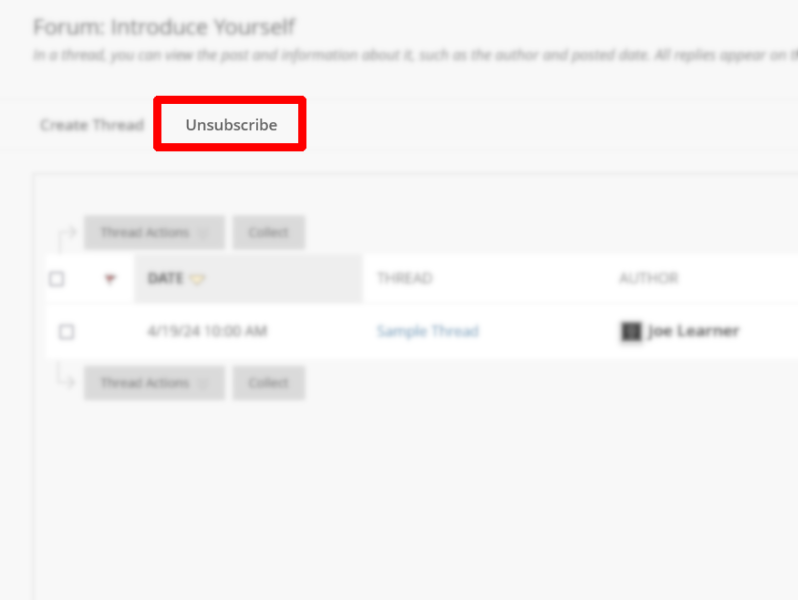
To toggle this option on or off enter that exact discussion board, and click the link shown here. It will say either “subscribe” or “unsubscribe” based on your current settings.

If you select “subscribe” you will get notices when someone posts to that forum in the email associated with your Blackboard account.

Saving and recovering drafts

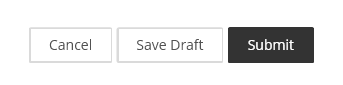
Most cases of missing posts are due to clicking “Save Draft” instead of “Submit” in the Blackboard text editor.

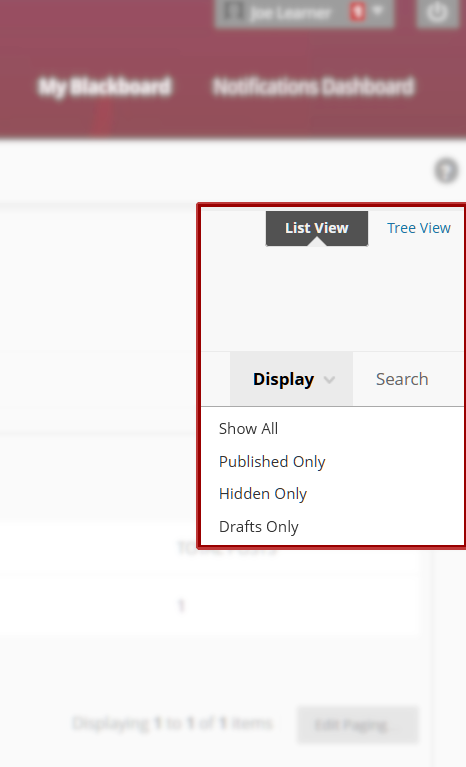
To recover a draft, in the proper forum make sure that you are using the “List View” and click “Drafts Only” in the Display drop down menu, shown on the right. If you have a draft saved, you will see it here and be able to complete your post.

**Note: Blackboard is unforgiving on deleted content! If you accidentally delete a post, there is no way to recover it.**

"Cannot batch requests to multiple DWR servlets" error

Errors like this are rare and typically due to browser incompatibility. We have seen this error caused by the use of secure browsers, like Brave, for example. If you are seeing this error, check your default browser and revisit the Supported Browsers section, above.

Blackboard error reporting

If you cannot find an answer to your problem here, use this form to send us an error report. We will get to your request as soon as possible.

  • Has your course already begun?

    Your course will not be made available in Blackboard until the Monday of its first day. If you’re new to BeADisciple, this means that you will not be able to access Blackboard until that time.

  • Have you received the login information email?

    On the first day of the course you will get an email sent to the address used in your enrollment form. It will detail the login processes and default password, if applicable. If you do not receive this, look at the related fix in this section.

  • Have you checked your username?

    Sometimes login problems are caused by a learner entering the wrong email address as their username at the Blackboard login screen. Your username will be the email address with which you signed up for the course.

  • Have you bookmarked the login screen?

    Don’t confuse the login screen for your home page! See the section above on “Using Blackboard” if you need help with this.

  • Have you tried the default password?

    Many login problems are caused by simply not trying the default password as detailed in the login information email.

  • 1. Check your username

    On occasion the problem is not a bad password, but the wrong username. Before moving on, doublecheck that the email address you are entering for your username is correct.

  • 2. Try the default password

    If you are new to BeADisciple, or are using a different email address, you will be issued a default password detailed in the login information email sent on the course’s launch day. If this works, we suggest changing your password to something more secure.

  • 3. Try password recovery

    The login page for Blackboard has a password reset option. The success of this option varies, but it’s good to try before the next option.

  • 4. Contact the Blackboard Administrator

    If none of the above works, the Blackboard administrator can issue you a new temporary password or, if you prefer, a specific password by request. Make your request using the contact form in our FAQs page. [ADD LINK]

  • Junk or spam filters are the most common reason for not seeing course reminders and login instructions. If you are not seeing our emails, look in those folders in your inbox first. Instructions for “un-spamming” our emails can be found here for Outlook, and here for G-mail.


  • null
    Unsubscribing from our mailing will also prevent you from seeing our emails. Click here to resubscribe to our mailing list.


  • If certain cases, usually when a learner has unsubscribed to our mailing list, our email management system may have blacklisted your address. If neither of the above options work use the error report form below, and we will look into the matter.


Navigating Blackboard discussions is a common question, and will get easier with practice. This video covers the main parts of the forums, but if you would rather have a PDF reference guide to the BeADisciple forums, click here.

If you are getting emails when someone posts to a discussion, you are likely subscribed to that forum.

To toggle this option on or off enter that exact discussion board, and click the link shown here. It will say either “subscribe” or “unsubscribe” based on your current settings.

If you select “subscribe” you will get notices when someone posts to that forum in the email associated with your Blackboard account.

Most cases of missing posts are due to clicking “Save Draft” instead of “Submit” in the Blackboard text editor.

To recover a draft, in the proper forum make sure that you are using the “List View” and click “Drafts Only” in the Display drop down menu, shown on the right. If you have a draft saved, you will see it here and be able to complete your post.

**Note: Blackboard is unforgiving on deleted content! If you accidentally delete a post, there is no way to recover it.**

"Cannot Batch Requests to Multiple DWR Servlets"

Errors like this are rare and typically due to browser incompatibility. We have seen this error caused by the use of secure browsers, like Brave, for example. If you are seeing this error, check your default browser and revisit the Supported Browsers section, above.

If you cannot find an answer to your problem here, use this form to send us an error report. We will get to your request as soon as possible.

Would you like to know about upcoming courses?
Click below to sign up for our monthly newsletter!

Course Newsletter Sign-up